
Operating System Install El Paso: What to Expect
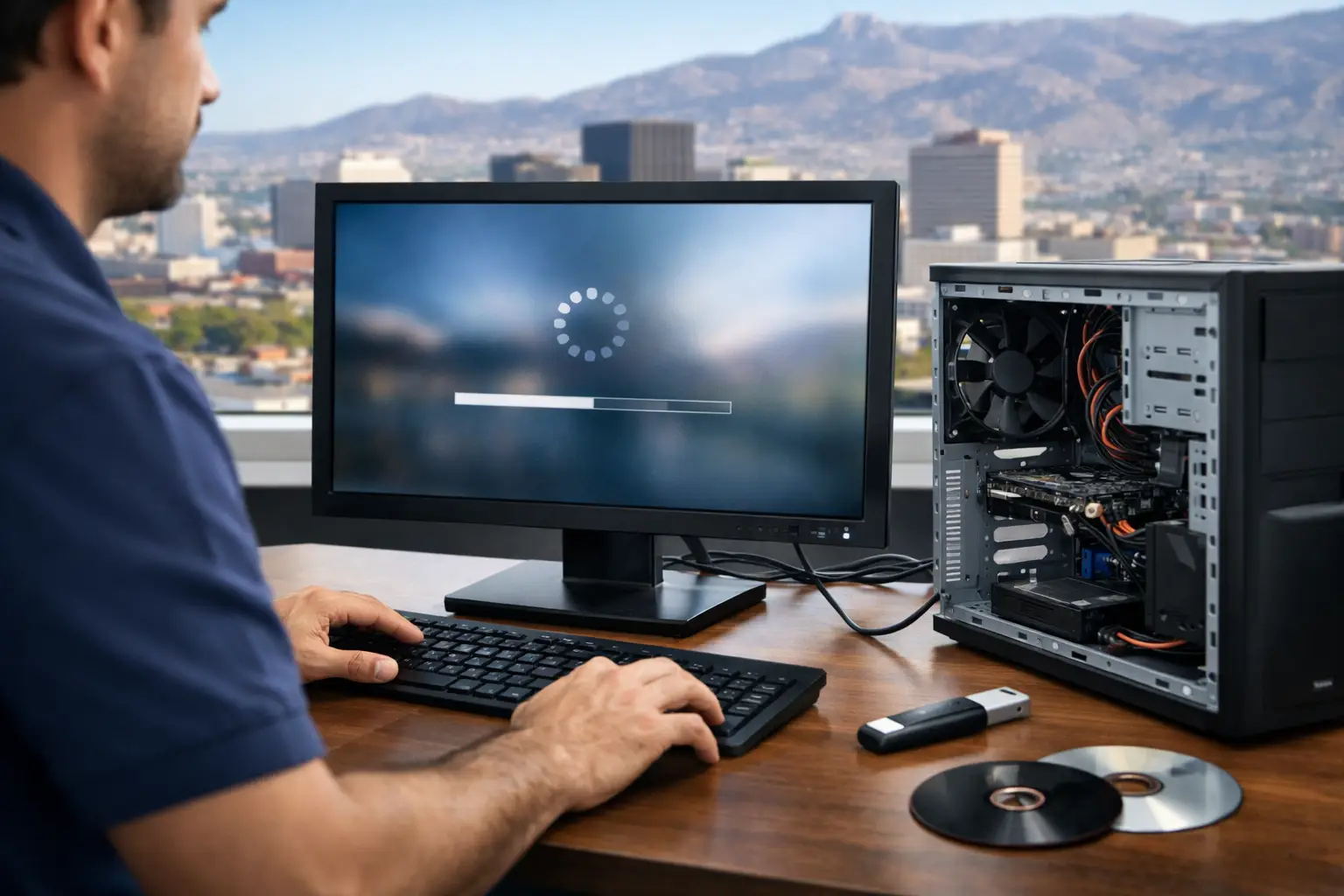
A slow laptop the night before class, a desktop stuck in a boot loop before payroll, a MacBook that never gets past the loading bar - this is usually when people start looking for operating system install El Paso service. In most cases, the real question is not just whether the OS can be installed. It is whether the job will be done correctly, whether your data is safe, and whether the machine has a deeper hardware problem that reinstalling alone will not fix.
That is where a lot of repair experiences go wrong. Some shops treat every software issue like a quick wipe-and-reload. Sometimes that works. Sometimes it wastes time, and the computer comes back with the same problem because the drive is failing, the RAM is unstable, or the board has an underlying fault. A proper operating system install starts with checking the whole system, not just loading Windows or macOS and hoping for the best.
When an operating system install in El Paso makes sense
A fresh operating system install is often the right move when the system is corrupted, overloaded with bad software, infected with malware, or trapped in repeated update failures. It can also make sense after replacing a failed drive, upgrading to an SSD, or cleaning up a machine that has become too unstable to trust for school or work.
For many customers, the warning signs are familiar. The computer freezes during startup, takes forever to log in, crashes randomly, or shows blue screens and recovery errors. On Macs, you may see repeated startup issues, spinning progress bars, or failed updates that never complete. In those cases, reinstalling the operating system can restore stability, but only if the hardware underneath is healthy enough to support it.
There are also times when a reinstall is not the first step. If a laptop was dropped, exposed to liquid, or has signs of drive failure, the priority may be data recovery or hardware diagnostics. If the machine powers on intermittently or not at all, that points away from software and toward motherboard, power, or storage issues. This is why a free initial evaluation matters. It keeps customers from paying for the wrong service.
Operating system install El Paso: more than just reinstalling Windows
A lot of people hear "OS install" and assume it is one basic process. In practice, it depends on the device, the condition of the storage drive, the version being installed, and what the customer needs afterward.
On a Windows PC, the process may involve testing the drive, backing up recoverable data, wiping corrupted partitions, installing a clean version of Windows, loading proper drivers, running updates, and verifying that core functions work correctly. That includes Wi-Fi, audio, graphics, USB ports, webcams, printers, and any business-critical software the customer relies on.
On a MacBook or iMac, there can be additional steps around macOS compatibility, firmware behavior, activation issues, and storage health. Older machines may run better on a supported version that matches their hardware rather than simply pushing the newest available release. Newer Apple devices can also present security and configuration hurdles that need to be handled carefully.
For small business customers, the job may involve even more. User account setup, email configuration, printer access, network settings, shared folder access, and software reinstallation all affect how quickly the machine gets back into service. A clean operating system install is only useful if the computer is actually ready to work when the customer gets it back.
What you should back up before an OS install
If the computer still turns on and the drive is readable, backing up data should happen before any reinstall. That includes documents, photos, desktop files, downloads, browser bookmarks, saved passwords, email archives, accounting files, school projects, and anything stored in application-specific folders.
People often remember their photos and Word documents but forget their browser profiles, local app data, or saved game files. Business users may overlook QuickBooks files, invoice templates, customer databases, or locally stored email. Once a drive is erased, missing one of those items becomes a much bigger problem.
If the system will not boot normally, data may still be recoverable. That depends on whether the drive is healthy, partially failing, or completely unreadable. This is another reason not to rush into formatting the device. If the information matters, recovery should be addressed first.
Clean install or repair install?
This is one of the most common judgment calls. A repair install or system recovery may preserve files and settings, and it can be the faster option when the issue is limited to corrupted system files or a failed update. The trade-off is that it may leave behind software clutter, hidden conflicts, or malware-related damage.
A clean install takes more time upfront because it starts fresh. Programs need to be reinstalled, user settings have to be rebuilt, and files need to be restored. The upside is that it gives the machine the best chance at a stable reset. For systems with severe slowdown, repeated crashes, or years of accumulated junk software, a clean install is often the better long-term fix.
It depends on how the machine is used. A student with a basic laptop and cloud-based files may benefit from a clean reset. A business owner with specialized software and legacy settings may want a more careful approach if preserving the environment matters. The right answer is usually based on risk, not convenience.
Why storage upgrades often happen at the same time
An operating system install is a common turning point for older computers because it exposes a bigger truth: many systems are slow because of the drive, not just the software. If a machine still uses a traditional hard drive, replacing it with an SSD can make startup, loading times, and overall responsiveness dramatically better.
That matters in real life. The same laptop that took three minutes to boot may start in seconds after an SSD upgrade and fresh OS install. Programs open faster, updates complete more reliably, and the system feels usable again. For many customers, that is more practical than replacing the whole device.
Of course, not every machine is worth upgrading. If the motherboard has issues, the battery is failing, the screen is damaged, and the system is already outdated, investing more money may not make sense. Honest service means saying that clearly, not selling parts into a machine that is on its way out.
Local service matters when the computer is your livelihood
When you search for operating system install in El Paso, speed is usually part of the problem. Most people are not planning ahead for this service. They need their laptop for school, their desktop for work, or their office machine for daily operations. Sending the device away for unknown turnaround is frustrating, especially when the issue may be resolved in-store.
Local in-store service gives customers a few practical advantages. The device stays in town. The evaluation is direct. If there is a problem beyond the operating system, that can be identified quickly. And if the repair changes direction because the drive is failing or the board has an issue, you are not stuck waiting for a generic update from a remote depot.
That is especially important for customers with more complex failures. A machine that will not install an OS may have a deeper storage problem, a damaged connector, or a board-level fault that other shops do not handle. EPElectrocenter is built around that kind of in-house diagnostic work, which matters when the easy answer does not fix the computer.
What to expect from a professional OS install service
A proper service should start with a clear explanation of the condition of the machine. If the drive tests bad, you should be told. If data backup is limited, you should know before anything is erased. If the issue looks hardware-related, that should be addressed before reinstalling software.
From there, the goal is simple: get the system stable, updated, and ready for normal use. That includes the operating system itself, required drivers, activation where applicable, and post-install testing. If the customer needs additional setup, that should be discussed clearly rather than assumed.
Walk-ins welcome matters here because software failures rarely happen at a convenient time. Free initial evaluation matters because not every startup problem needs a reinstall. And all services performed in-store matters because customers want accountability when their files, devices, and work are involved.
If your computer is dragging, crashing, or refusing to boot, the best next step is not guessing. It is getting the system checked by a shop that can tell the difference between a software problem, a failing drive, and a deeper hardware fault - and fix the one you actually have.